
Audio file setup
The natural first step to start working on a new chart is setting up the audio file of the song in question. Check the Quick Start steps for a quick summary.
Quick Start
- Install Audacity
- If your source file is in a
.m4aor.aacformat, you may need to install the ffmpeg for windows addon
- If your source file is in a
- Find, or calculate, your songs’ BPM. This will be necessary for Tempomapping.
- Export your song as an
.ogg(or obtain an.mp3) file.
A note on song selection for beginners
The following are purely recommendations on picking a track to chart for those starting out on their charting journey. The intention is to ease you into the process, as dealing with variable tempos or lengthy tracks can lead to frustration.
- Choose a track that has a clear leading instrument (or vocal!) to follow. Given SRXD’s nature, electronic music is a generally easy recommendation here.
- Choose a track that has a steady tempo. Variable BPM/live plays present another layer of complexity that’s better to tackle after grasping the basics of charting.
- Choose a track that you’re willing to listen to many, many times during the process. But also, a track that’s not your all-time favorite. Save it for when you’ve got some experience, so you can do it justice later.
- Lastly, choose a reasonably short track (up to 4 minutes), as it’ll be easier to finish before hitting the point of frustration or burnout. It’s also easier for other potential playtesters to go through it quickly and give you feedback.
No one should stop you from charting a 30-minute megamix or medley on your first try if you’re determined though. More power to you!
Audio quality
Ideally, the source file of your track should be of the highest quality available, as it’s going to unavoidably get somewhat downgraded before importing into the game. As a general rule of thumb:
- Prioritize obtaining a
.flacor.wavformat file of your track. - Alternatively, a 256Kbps bitrate or better
.mp3file can work, as it’s the only format other than.oggsupported by SRXD. - Heavily discouraged, unless the track is quite literally not available anywhere else: YouTube rips.
Exporting with Audacity
File ➜ Export Audio… ➜ Format: Ogg Vorbis Files ➜ Quality: 8 ➜ Export
Importing the audio into SRXD
By default, SRXD stores custom content at the following path:
C:\Users\[USER]\AppData\LocalLow\Super Spin Digital\Spin Rhythm XD\CustomYou can easily access this directory using the Show files button in the Custom side panel in-game.
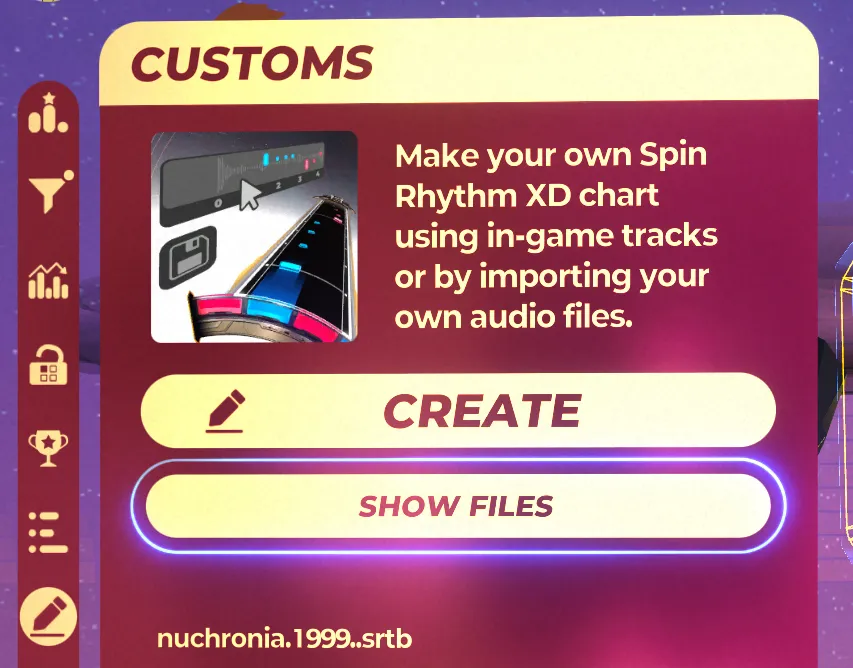
Once your audio file is ready, move it into the AudioClips folder.
You’re set and ready to move on to Tempomapping!